Internal · Secure
Every document
your team works on.
One secure home.
Intranet Portal keeps departmental files organized, versioned, and visible only to the people who should see them — and records every action along the way.
No public links · No self-signup · Access is always granted by a person
Granular Access Matrix
Explicit Allow & Deny grants per user with manager override.
Files managed
Indexed & previewed in browser
Departments
Isolated custom workspaces
Permission levels
Granular role access control
Action-logged
Full audit tracking log
See how the portal works in practice
Click any step to preview how files, permissions, and organization run inside the intranet.
Files land exactly where they belong
Drag into any department folder. Tags and metadata attach automatically — organized from the first drop.
Six things the portal does, every day
Explore how departmental files, access rules, versions, and activity tracking run inside the portal.
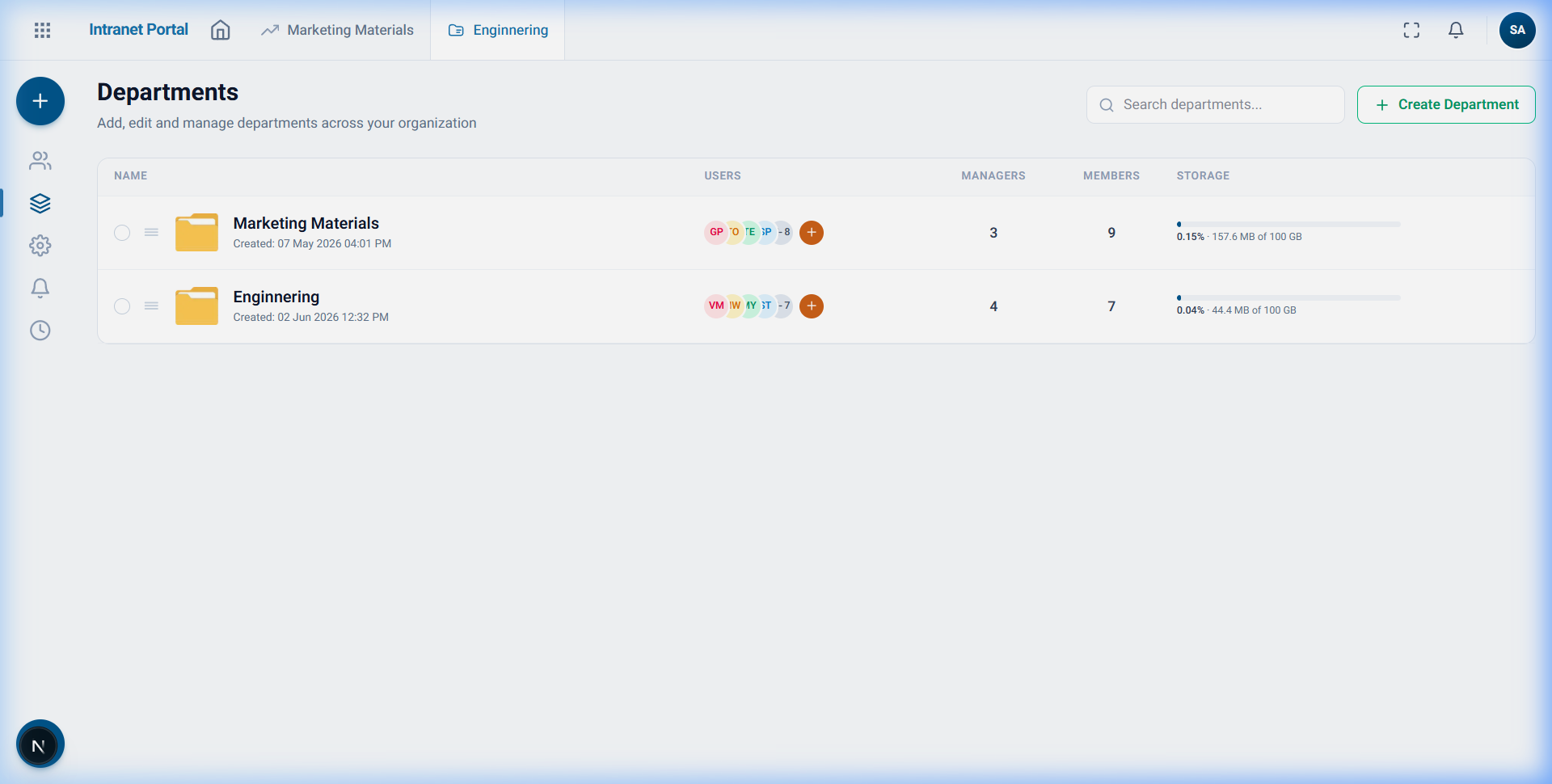
Files live where the work does
Every document belongs to a department. Managers run their own space, members work inside it, and each department carries its own storage quota.
- Set managers and members per department
- Storage bar warns at 75% and 90% quota
- Custom department order preference
Organize once, find it later
Nest folders as deep as work requires, tag them, pin daily files, and bulk move or copy when projects get reshuffled.
- Nested folders, smart tags, and pinning
- Bulk move, copy, and delete preview
- ZIP selection full-folder downloads
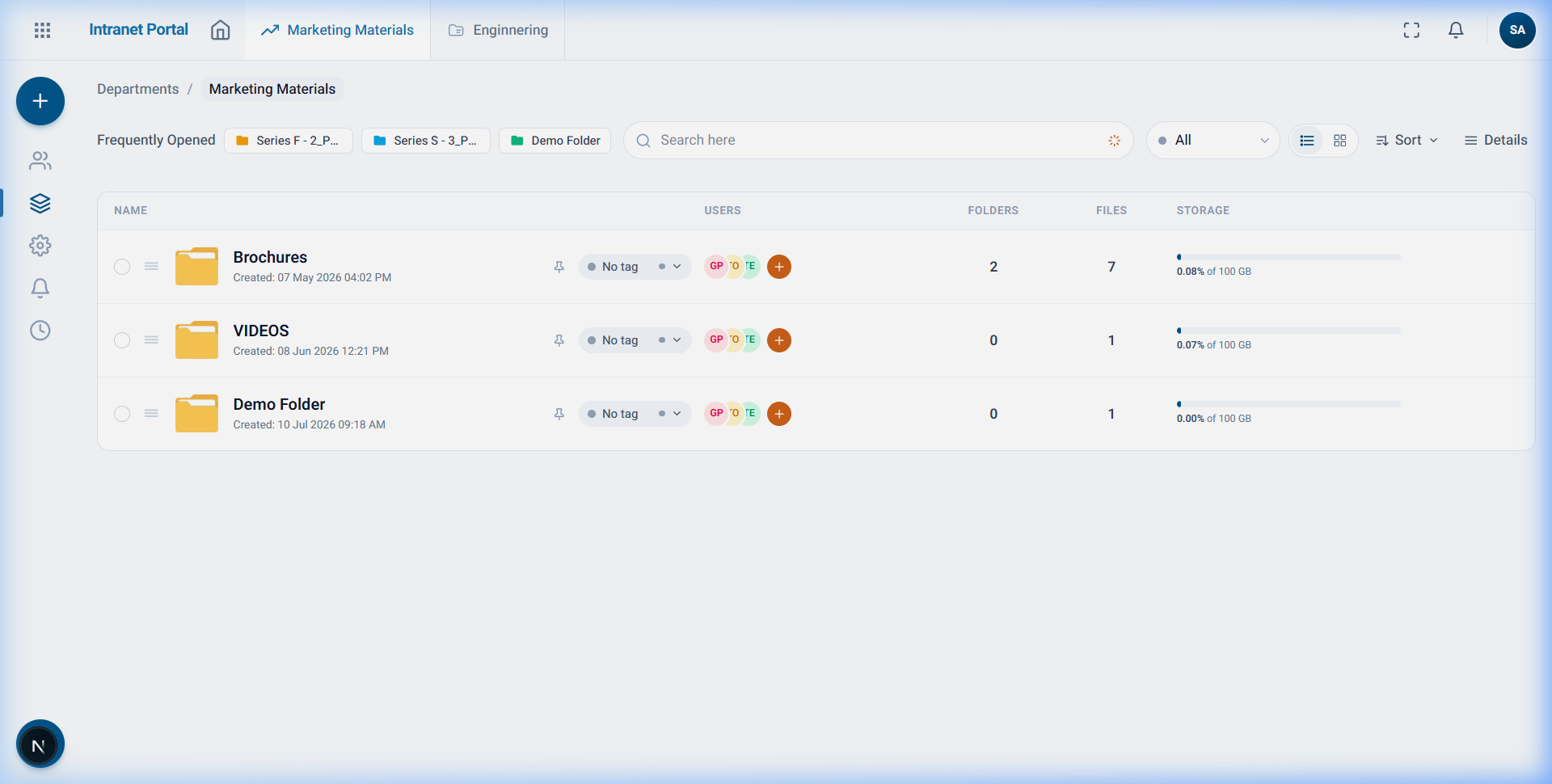
Down to single file per person
Roles set the baseline. Any folder or file can carry an explicit allow or deny for an individual — and a deny always wins.
- Eight permissions per module
- Explicit allow / deny grants per user
- Requests route to manager for remark approval
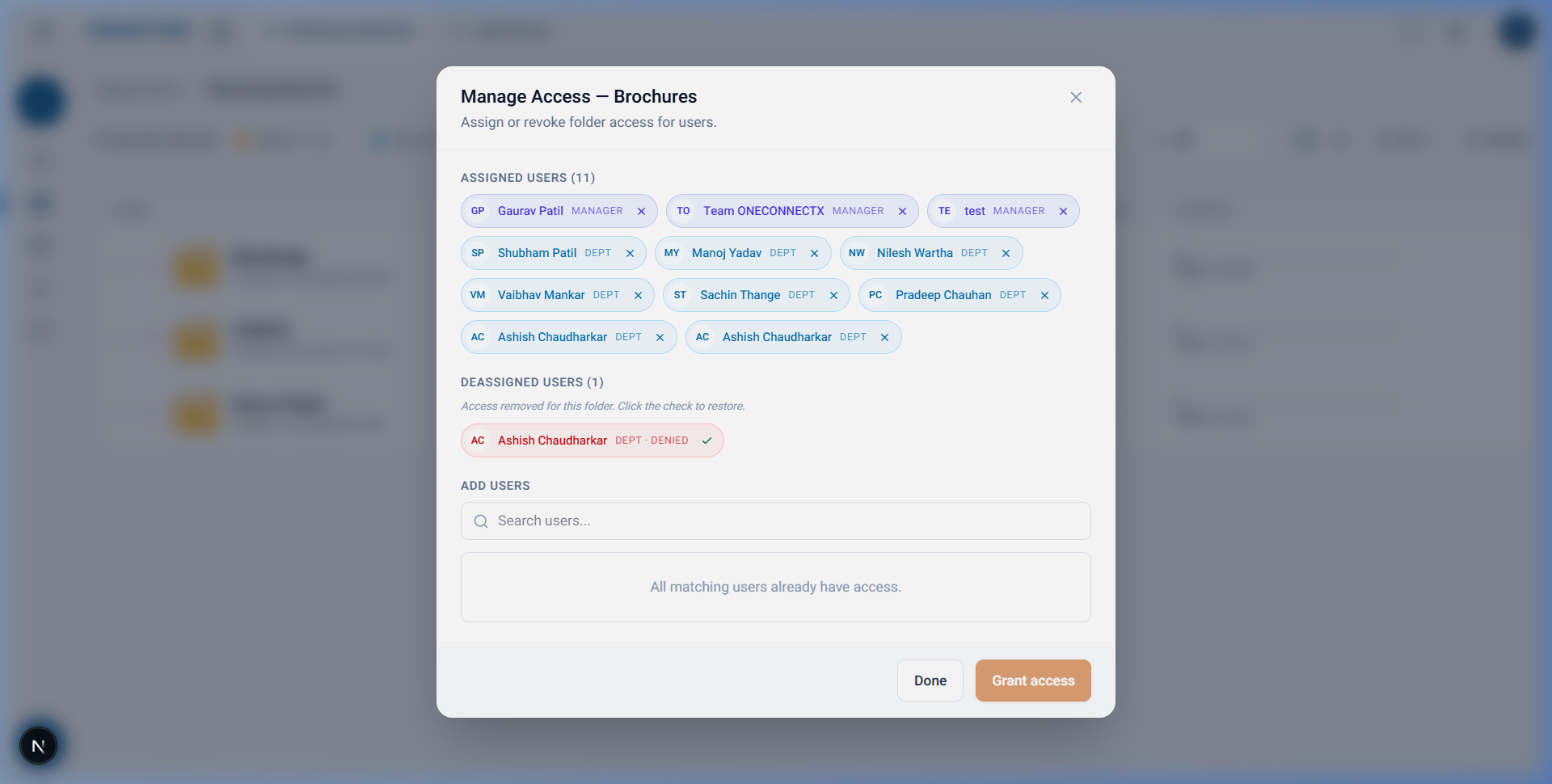
Never lose previous file versions
Upload a document with an existing name and the portal keeps previous bytes as a version, stepping labels from v1.0 to v1.1.
- Full version history on every file
- Download any earlier file version
- Replacements recorded in audit log
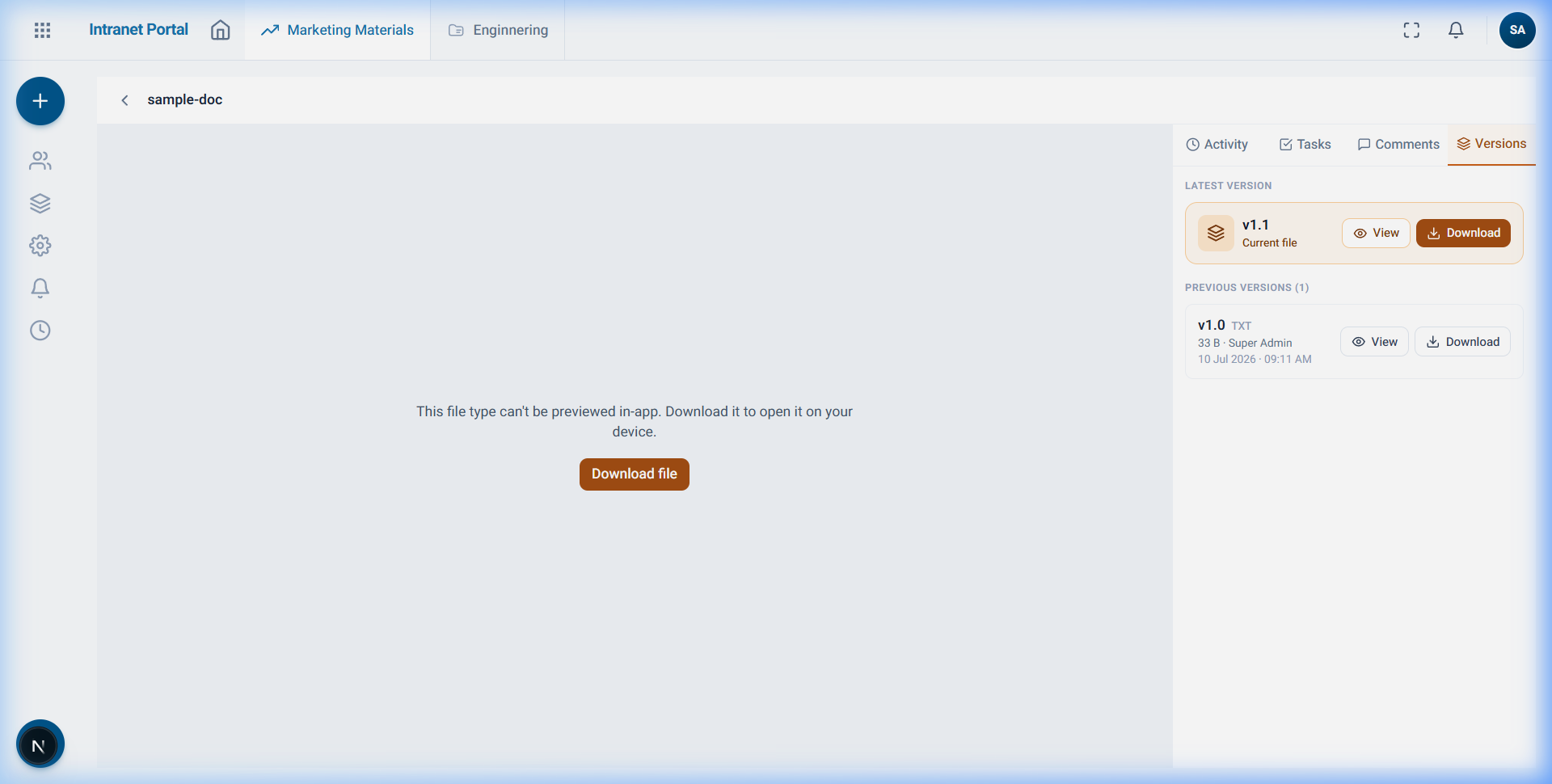
Discussion pinned on the page
Comment on a PDF page or selected passage. Mention colleagues for notifications or turn notes into tasks with assignees and due dates.
- @mentions with in-app notifications
- Anchored page & passage comments
- Tasks with priority, due date, assignees
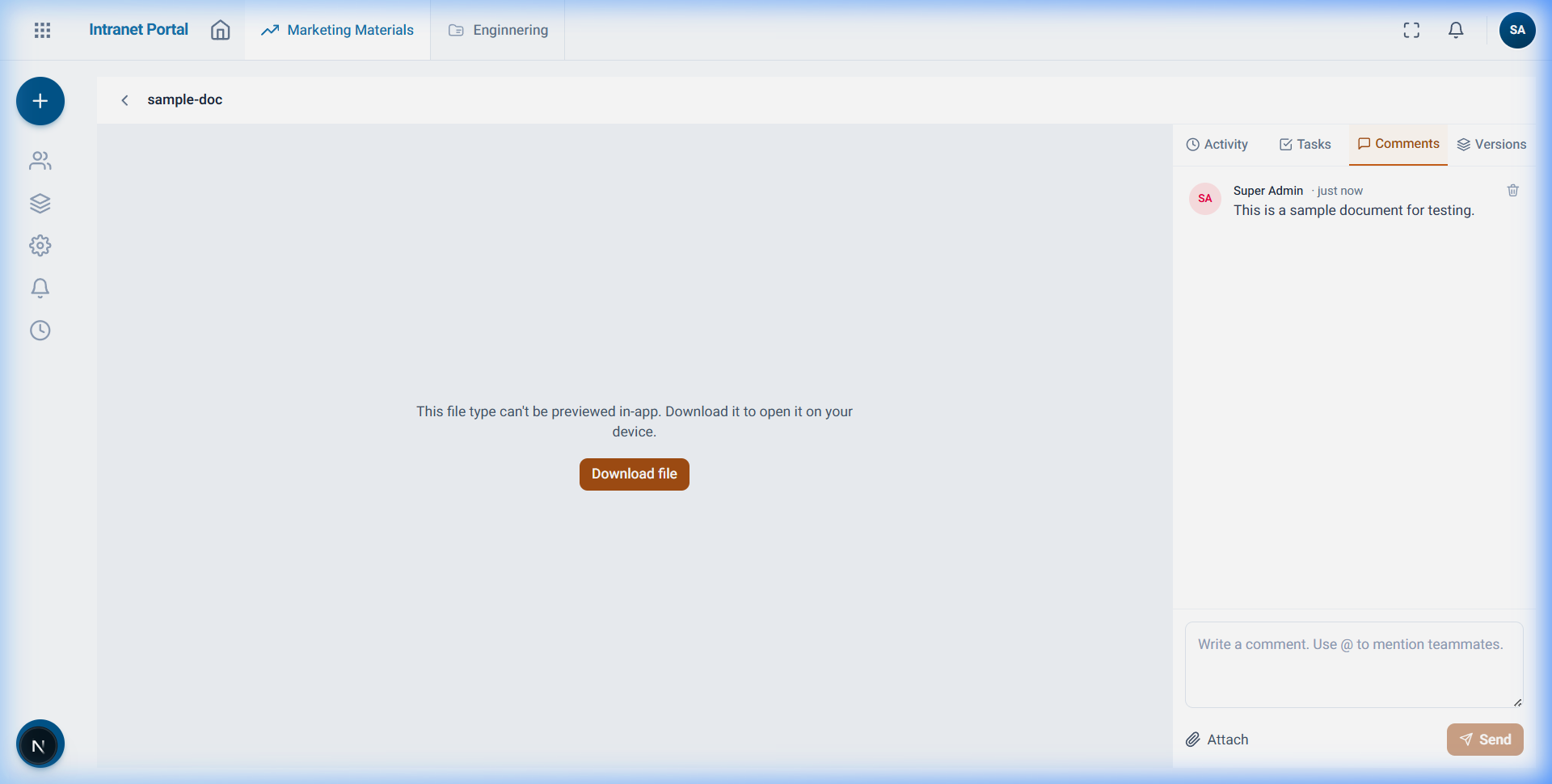
Who touched what, and when
Creates, copies, moves, deletes, downloads, shares, and replacements are recorded. Filter feed by action, type, person, or department.
- Attributed download & share tracking
- Filter by action, type, user, department
- Recently accessed fast-navigation list
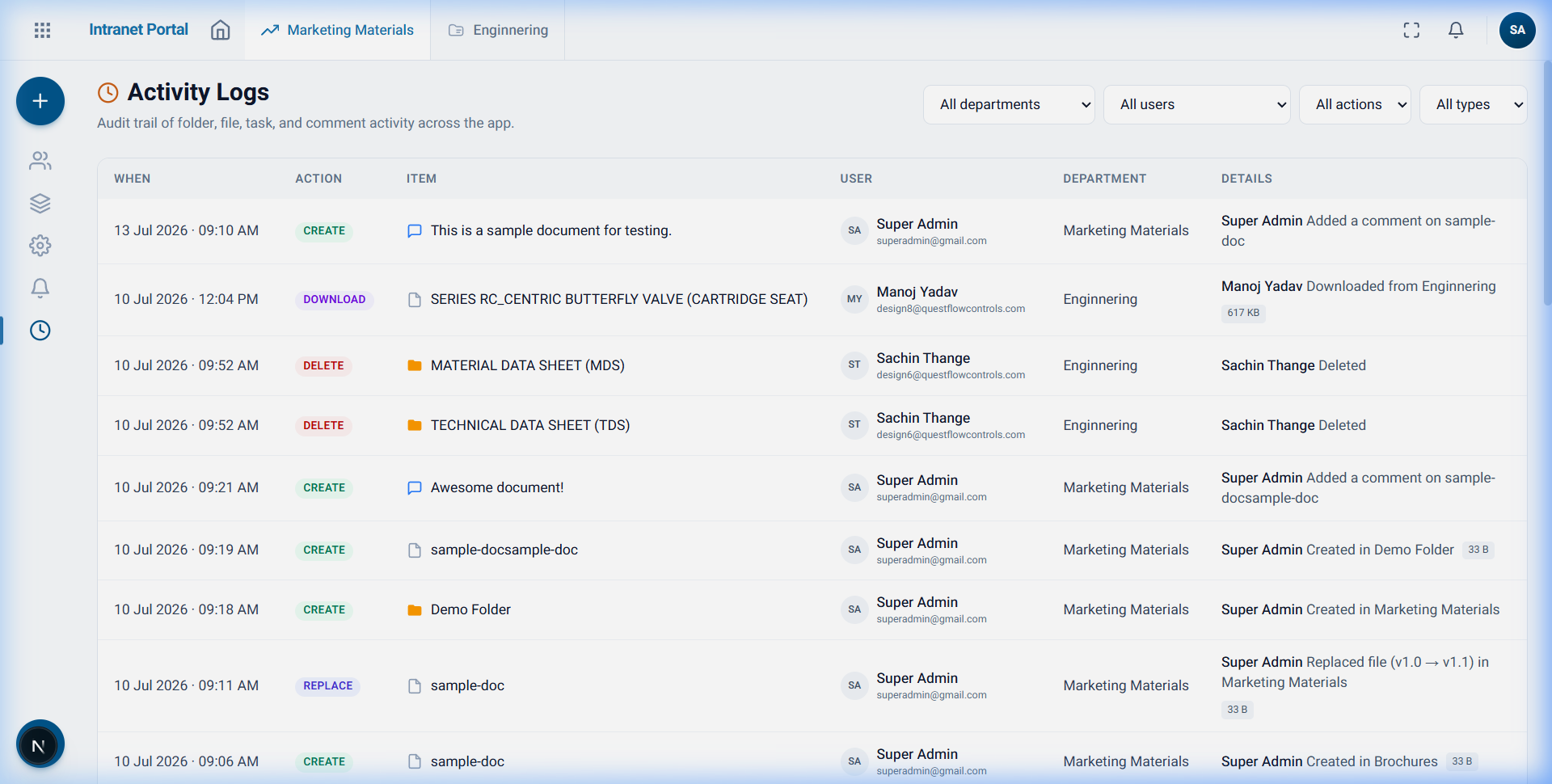
Permission is the product
Granular baseline rules, explicit individual overrides, and automatic zero-exposure request routing built directly into the portal.
Eight-Point Module Engine
Toggle permissions per role
Granular flags set the baseline per department, folder, and user group.
Explicit Deny Precedence
Deny always overrides allow
File-level exclusions strictly override parent folder access rules.
Zero-Exposure Governance
Zero metadata leakage
Unauthorized colleagues see a clean request prompt — never filenames or broken previews.
Manager Approval Routing
Automated workflow
Alex Morgan
Requested access to Department Files
Requests route directly to the Department Manager who approves or declines with a written remark.
Read it without downloading it
Every file in your intranet opens straight in the browser. Browse, preview, and comment — without touching local storage.
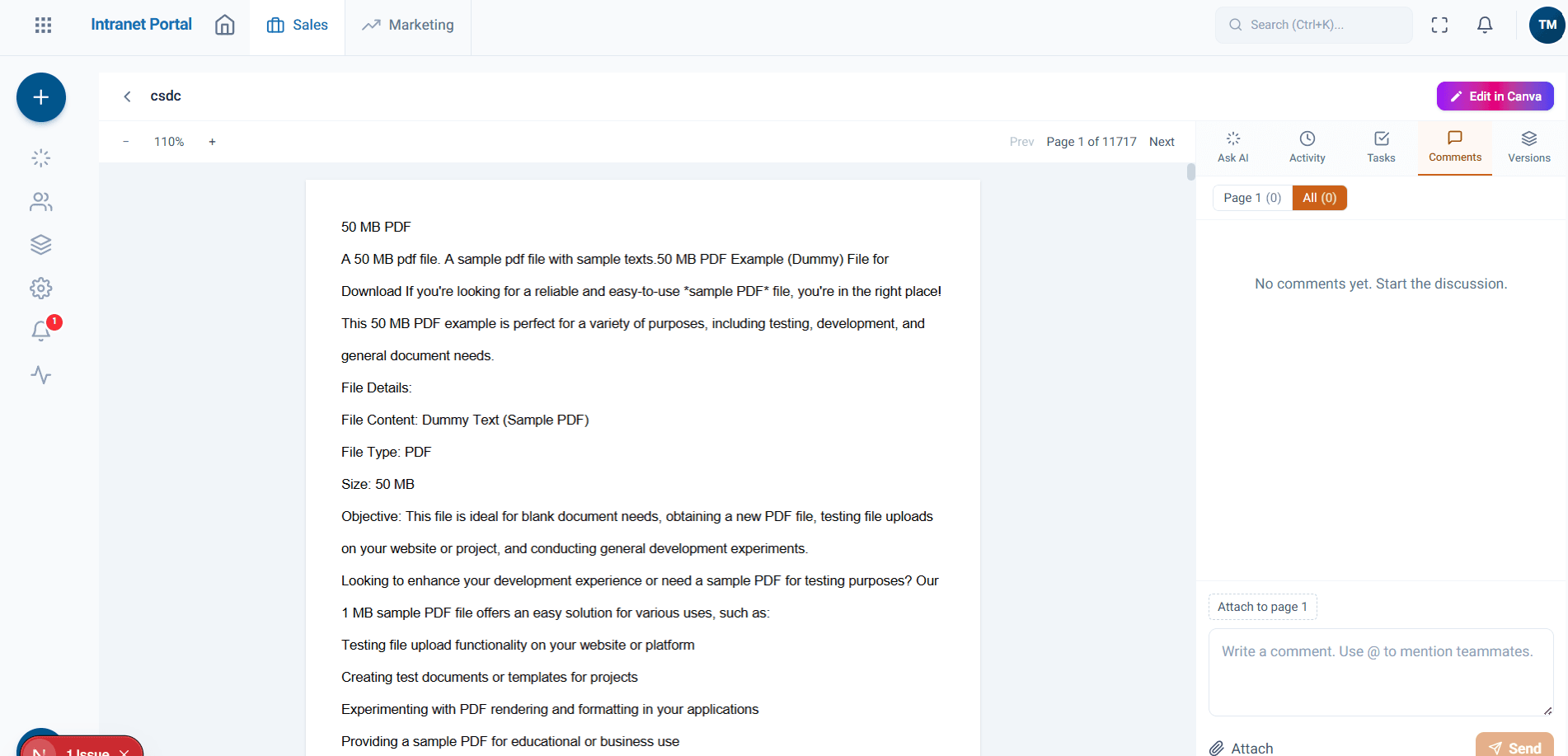
PDF Reader & Highlights
Multi-page PDFs render natively in the browser tab. Highlight text, add page comments, and reference sections without downloading raw PDF files.
- Multi-page navigation
- Anchored PDF comments
- Text highlight selection
- Zero local file trace
Built to contain. Designed to share.
Every link stays inside the company. Every quota is watched. Every share is logged.
Sharing
Internal share links
Link bundles with expiry. Re-auth on every open. Every click logged.
Storage
Department quotas
100 GB per department. Amber at 75%, red at 90%. Always ahead of the limit.
400 GB
Total
241 GB
Used
159 GB
Free
1 dept
At risk
Before you ask
How is Intranet Portal different from a general cloud drive?
Consumer drives prioritize unrestricted public sharing with access control added as an afterthought. Intranet Portal is engineered the opposite way: zero public links by default, per-file granular permissions down to a single user, explicit deny precedence, and unauthorized colleagues see a formal request prompt instead of a broken document preview.
See it on your own documents
Tell us how your departments are organized and who needs to see what. We'll show you the portal running against a structure that looks like yours.
No public links · No self-signup · Access granted by a person